Best YouTube Upload Settings for 2026
For most YouTube creators, the best upload settings are: 1080p or 4K, H.264 codec, 8–12 Mbps bitrate for 1080p (35–45 Mbps for 4K), AAC audio at 320 kbps, MP4 container. These settings survive YouTube's re-encoding with minimal quality loss. Below is the full breakdown of every setting and when to adjust.
What are the best YouTube upload settings in 2026?
Here are the recommended settings at a glance. Use this as a quick reference — each section below explains the reasoning.
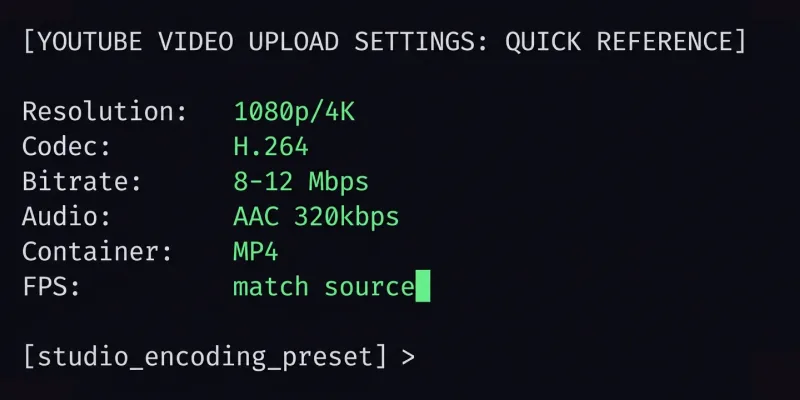
| Setting | Recommended Value |
|---|---|
| Container | MP4 |
| Video Codec | H.264 (Main or High profile) |
| Resolution | 1080p (1920×1080) or 4K (3840×2160) |
| Frame Rate | Match source (24, 30, or 60 fps) |
| Bitrate (1080p SDR) | 8 Mbps (standard) / 12 Mbps (high motion) |
| Bitrate (4K SDR) | 35–45 Mbps |
| Bitrate (4K HDR) | 44–56 Mbps |
| Audio Codec | AAC-LC |
| Audio Bitrate | 320 kbps stereo / 512 kbps 5.1 |
| Sample Rate | 48 kHz |
| Color Space | BT.709 (SDR) / BT.2020 (HDR) |
| Max File Size | 256 GB |
| Max Duration | 12 hours (verified) / 15 min (unverified) |
What is the best resolution for YouTube?
1080p is the minimum for a professional-looking video. 4K is ideal if your camera and editing workflow support it.
YouTube processes and stores multiple resolution variants of every upload. When you upload at 4K, viewers can watch at 4K, 1440p, 1080p, 720p, and lower — each variant looks better than if you had uploaded at 1080p because YouTube derives them from a higher-quality source.
Uploading at 720p or lower in 2026 is not recommended. Most YouTube viewers watch on 1080p screens at minimum, and the YouTube algorithm tends to favor higher-quality uploads for recommendations.
What bitrate should I use for YouTube?
For 1080p at 30fps, use 8 Mbps. For 1080p at 60fps, use 12 Mbps. For 4K at 30fps, use 35–45 Mbps.
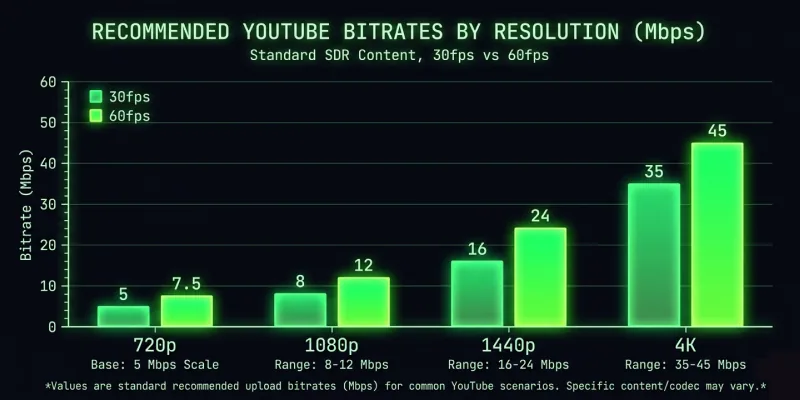
| Resolution | Frame Rate | SDR Bitrate | HDR Bitrate |
|---|---|---|---|
| 720p | 30 fps | 5 Mbps | — |
| 720p | 60 fps | 7.5 Mbps | — |
| 1080p | 30 fps | 8 Mbps | 10 Mbps |
| 1080p | 60 fps | 12 Mbps | 15 Mbps |
| 1440p | 30 fps | 16 Mbps | 20 Mbps |
| 1440p | 60 fps | 24 Mbps | 30 Mbps |
| 4K | 30 fps | 35–45 Mbps | 44–56 Mbps |
| 4K | 60 fps | 53–68 Mbps | 66–85 Mbps |
Going above these bitrates wastes file size without visible quality improvement — YouTube re-encodes everything regardless. Going significantly below them means YouTube's re-encoding has less data to work with and the final result looks worse.
Need the number for a resolution or frame rate not listed above? The recommended video bitrate calculator covers 480p through 4K at 24, 30 and 60 fps, and shows the file size each setting produces.
File too large? Compress your video with VidCrush to hit the right bitrate without manually tweaking FFmpeg settings.
Should I use H.264 or H.265 for YouTube?
Use H.264 for maximum compatibility. Use H.265 only if you need smaller file sizes and are comfortable with the trade-offs.
YouTube accepts both H.264 and H.265 (HEVC) uploads. It also accepts VP9 and AV1. However, YouTube re-encodes every upload into its own optimized formats (VP9 and AV1) for delivery. So the codec you upload with matters only for two things: upload time (smaller files upload faster) and the quality of the source YouTube works with.
H.264 is the safest choice because every video editor exports it natively, the encoding is fast, and YouTube handles it reliably. H.265 produces files roughly 30–50% smaller at the same quality, which is useful if your internet upload speed is slow.
What are the best audio settings for YouTube?
AAC-LC at 48 kHz, 320 kbps for stereo, 512 kbps for 5.1 surround.
YouTube supports AAC and Opus audio codecs. AAC-LC is the safest choice. Always export at 48 kHz sample rate — YouTube's processing pipeline expects this, and uploading at 44.1 kHz can introduce subtle resampling artifacts.
For music-heavy content, bump audio bitrate to 384 kbps or higher. For podcasts and talking-head videos, 256 kbps is plenty.
Should I upload 30fps or 60fps to YouTube?
Match your source frame rate. Do not convert 30fps footage to 60fps or vice versa.
YouTube supports 24, 25, 30, 48, 50, and 60 fps. The golden rule is to upload at the same frame rate you recorded in. Converting 30fps to 60fps creates duplicate frames that look unnatural. Converting 60fps to 30fps discards half your frames.
For gaming content, 60fps is strongly preferred. For vlogs, tutorials, and cinematic content, 24 or 30fps is standard.
What does YouTube do to your video after upload?
YouTube re-encodes every upload into VP9 and AV1 at multiple resolutions. Your original file is never delivered directly to viewers.
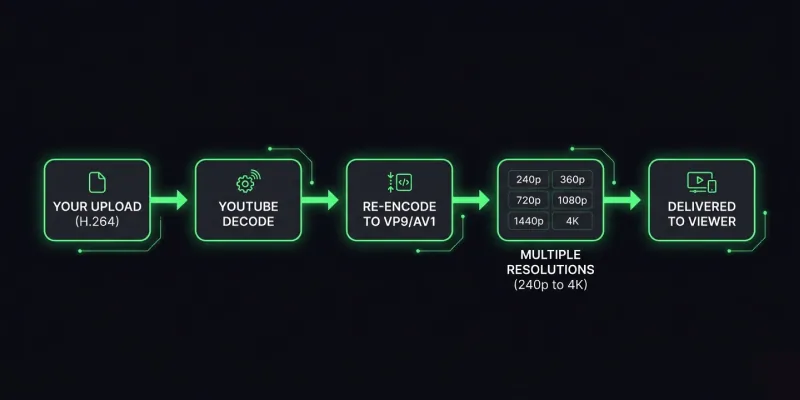
After you upload, YouTube's processing pipeline:
- Decodes your file (regardless of input codec)
- Generates multiple resolution variants (240p through your max resolution)
- Encodes each variant in VP9 (and increasingly AV1 for popular videos)
- Optimizes the bitrate for each resolution based on content complexity
A 4K upload may show as 360p for the first few hours while YouTube finishes processing. This is normal — do not re-upload.
What are the most common YouTube upload mistakes?
- Uploading at 720p when 1080p is available. Even if your recording is 720p, upscale to 1080p in your editor.
- Using variable frame rate (VFR). Screen recordings often use VFR, which causes audio sync issues. Convert to CFR before uploading.
- Bitrate too low. Uploading 1080p at 2–3 Mbps gives YouTube a low-quality source. The result will look blocky.
- Compressing twice. If your editor exports at a reasonable bitrate, do not compress again before uploading.
- Wrong sample rate. Use 48 kHz, not 44.1 kHz — YouTube expects 48 kHz.