Instagram Video Size Limit 2026 — How to Compress for Reels & Stories

Instagram is one of the most important platforms for video content in 2026. Between Reels, Stories, and Feed posts, creators upload billions of videos every month. But Instagram's approach to video is unusual: the file size limits are generous (4 GB), yet the platform aggressively re-compresses everything you upload. This means the challenge is not fitting your video under a size cap — it is making sure your video survives Instagram's compression pipeline looking as sharp as possible.
This guide covers Instagram's exact video limits for every format, explains why pre-compressing before upload actually improves quality, and provides the optimal settings for Reels, Stories, and Feed posts.
Instagram Video Limits — Complete Table
Here is a comprehensive breakdown of Instagram's video specifications for every content type in 2026:
| Format | Max File Size | Max Duration | Aspect Ratio | Recommended Resolution |
|---|---|---|---|---|
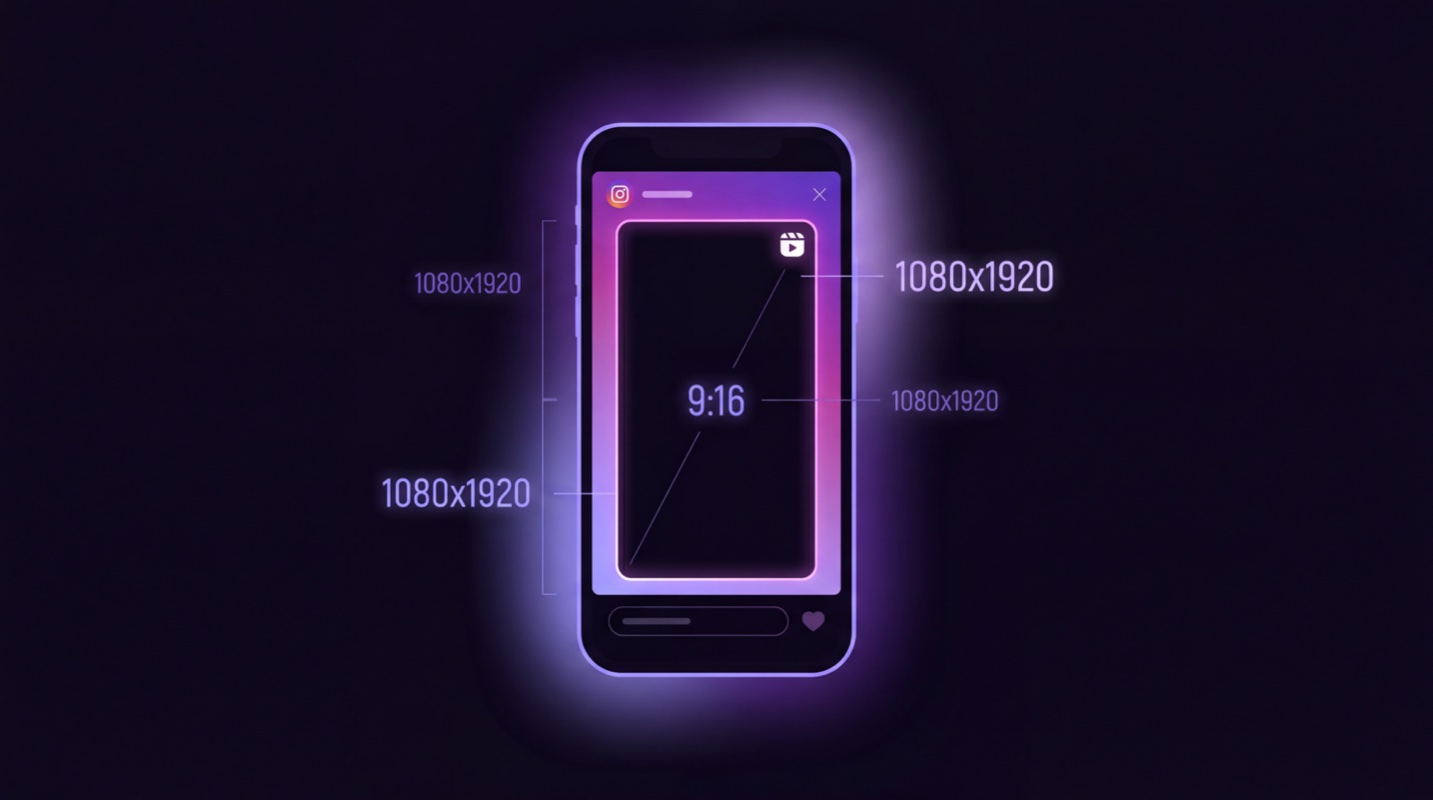
| Reels | 4 GB | 90 seconds | 9:16 (vertical) | 1080 × 1920 |
| Stories | 4 GB | 60 seconds | 9:16 (vertical) | 1080 × 1920 |
| Feed Post | 4 GB | 60 minutes | 1:1, 4:5, 16:9 | 1080 × 1080 or 1080 × 1350 |
| Live | Stream only | 4 hours | 9:16 (vertical) | 720p recommended |
A few important notes: Stories longer than 60 seconds are automatically split into multiple segments. Feed posts used to be capped at 60 seconds but Instagram has been gradually increasing this limit. The 4 GB file size limit is the same across Reels, Stories, and Feed, but you will rarely approach it with properly compressed content.
Why Pre-Compress Before Uploading to Instagram
This is the most counterintuitive aspect of Instagram video: even though the 4 GB limit is generous, you should still compress your video before uploading. Here is why.
Instagram Re-Encodes Everything
Every single video uploaded to Instagram — regardless of its original quality, codec, or file size — is re-encoded by Instagram's servers. The platform has its own target bitrate and resolution, and it will force your video to conform to those parameters. Typically, Instagram targets around 3.5 Mbps for video bitrate, even if your original was recorded at 30 Mbps or higher.
The Compression Math
Consider what happens when you upload a raw 4K video at 30 Mbps:
- Instagram receives a 30 Mbps file
- It downscales from 4K to 1080p (or 1080x1920 for Reels)
- It re-encodes to approximately 3.5 Mbps
- That is a 88% reduction in bitrate — applied by an automated algorithm
Now consider uploading a pre-compressed video at 1080p and 5 Mbps:
- Instagram receives a 5 Mbps file at the right resolution
- No downscaling needed
- It re-encodes to approximately 3.5 Mbps
- That is only a 30% reduction in bitrate
The less work Instagram's encoder has to do, the better your video will look after processing. Pre-compression at settings close to Instagram's internal targets gives the platform's encoder less room to damage your footage.
Faster Uploads
A 90-second 4K video might be 800 MB. The same video at 1080p and 5 Mbps is about 56 MB. Uploading 56 MB takes a fraction of the time, uses less mobile data, and is less likely to fail due to connection drops. The visual quality after Instagram's processing will be virtually identical.
Try it now: Compress your video for Instagram — free, optimal settings pre-configured.
How to Compress Video for Instagram — Step by Step
Getting a video Instagram-ready takes about 30 seconds with the right tool:
Step 1: Open SquishVideo's Instagram Preset
Go to vid-crush.com/pages/instagram/ in any browser. The Instagram preset is pre-selected, which automatically configures resolution, bitrate, codec, and aspect ratio for optimal Instagram results.
Step 2: Upload Your Video
Drag and drop your video file or tap to browse. SquishVideo accepts all common video formats (MP4, MOV, AVI, MKV, WebM) up to 500 MB. The tool processes everything locally in your browser — your video never leaves your device.
Step 3: Download and Upload to Instagram
Once compression finishes, download the optimized file. It will be significantly smaller than the original, formatted in the correct aspect ratio, and encoded with settings that survive Instagram's re-compression with minimal quality loss. Save it to your camera roll and upload to Instagram normally.
Optimal Settings for Each Instagram Format
Different Instagram formats have slightly different requirements. Here are the ideal settings for each:
Resolution: 1080 × 1920
Frame Rate: 30 fps
Codec: H.264
Video Bitrate: 5 Mbps
Audio: AAC 128 kbps
Format: MP4
Resolution: 1080 × 1920
Frame Rate: 30 fps
Codec: H.264
Video Bitrate: 5 Mbps
Audio: AAC 128 kbps
Format: MP4
Resolution: 1080 × 1080
Frame Rate: 30 fps
Codec: H.264
Video Bitrate: 5 Mbps
Audio: AAC 128 kbps
Format: MP4
Resolution: 1080 × 1350
Frame Rate: 30 fps
Codec: H.264
Video Bitrate: 5 Mbps
Audio: AAC 128 kbps
Format: MP4
Why 5 Mbps? This is the sweet spot for Instagram. It is high enough to produce clean, sharp video but low enough that Instagram's re-encoder does not need to slash the bitrate dramatically. Going higher (10+ Mbps) wastes bandwidth and upload time because Instagram will compress it down anyway. Going lower (2-3 Mbps) may result in the video looking worse than what Instagram's own compression would produce.
Why 30fps? Instagram's Reels player supports 30fps natively and displays it smoothly. While you can upload 60fps content, Instagram often processes it to 30fps internally, and the extra frames just increase file size without improving the final output. Stick with 30fps for the best results.
Common Mistakes That Kill Instagram Video Quality
Even experienced creators make these errors, and each one can significantly degrade the quality of your Instagram videos after upload.
1. Wrong Aspect Ratio
This is the most common mistake. If you upload a 16:9 horizontal video to Reels, Instagram crops it to 9:16 — cutting off more than half of your frame. Always check the target format before uploading. Reels and Stories need 9:16 vertical. Feed posts work best at 1:1 (square) or 4:5 (portrait). Horizontal 16:9 is only suitable for Feed posts and even then takes up less screen real estate.
2. Too High Resolution
Uploading 4K (3840x2160) video to Instagram is counterproductive. Instagram downscales everything to 1080p maximum. The extra pixels are discarded during processing, and the larger file takes longer to upload. Worse, the aggressive downscaling can sometimes introduce artifacts that would not be present if you had uploaded at 1080p in the first place.
3. Using H.265 (HEVC)
H.265 is a great codec for storage and streaming, but it can cause issues with Instagram's upload pipeline. Some users report processing failures, longer upload times, or quality anomalies when uploading H.265 content. H.264 is the safest and most reliable codec for Instagram uploads.
4. Bitrate Too High
Uploading at 20-30 Mbps does not make your Instagram video look better. Instagram's encoder targets approximately 3.5 Mbps regardless of input. Uploading at an extremely high bitrate means Instagram has to do more aggressive compression, which can actually produce worse results than uploading at a moderate 5 Mbps. More is not better in this case.
5. Wrong Frame Rate
Uploading at 24fps, 48fps, or other non-standard frame rates can cause stuttering or frame blending artifacts in Instagram's player. The platform is optimized for 30fps content. While 60fps uploads are accepted, they may be processed differently. For the most consistent results, encode at 30fps before uploading.
Reels vs Stories vs Feed — Comparison Table
Here is a quick reference comparing the key differences between Instagram's three main video formats:
| Feature | Reels | Stories | Feed Post |
|---|---|---|---|
| Max Duration | 90 seconds | 60 seconds | 60 minutes |
| Aspect Ratio | 9:16 | 9:16 | 1:1, 4:5, 16:9 |
| Resolution | 1080 × 1920 | 1080 × 1920 | 1080 × 1080 / 1080 × 1350 |
| Discoverability | High (Explore + Reels tab) | Low (followers only) | Medium (feed + Explore) |
| Lifespan | Permanent | 24 hours | Permanent |
| Audio | Music library + original | Music library + original | Original audio only |
| Best For | Growth & reach | Engagement with followers | Evergreen content |
Reels are currently the highest-priority format for the Instagram algorithm. If you want maximum reach and discoverability, Reels should be your primary video format. Stories are best for daily engagement with your existing audience. Feed posts work well for longer, polished content that you want to remain on your profile permanently.
Frequently Asked Questions
What is the maximum video file size for Instagram?
Instagram allows video uploads up to 4 GB across all formats — Reels, Stories, and Feed posts. However, the practical limits are duration-based: Reels up to 90 seconds, Stories up to 60 seconds per segment, and Feed posts up to 60 minutes. Uploading large files is rarely beneficial because Instagram re-encodes everything.
Why does my Instagram video look blurry after uploading?
Instagram re-encodes every video you upload, typically reducing bitrate to around 3.5 Mbps. If you upload a video at 30 Mbps, Instagram compresses it aggressively, which introduces visible quality loss. Pre-compressing at 5 Mbps results in similar final quality but less aggressive re-encoding, which means fewer artifacts and better visual clarity.
What is the best resolution for Instagram Reels?
The optimal resolution for Instagram Reels is 1080x1920 pixels (9:16 vertical aspect ratio). This matches the full-screen display on most smartphones. Uploading at higher resolutions like 4K does not improve quality because Instagram downscales everything to 1080p during processing.
Should I use H.264 or H.265 for Instagram?
Use H.264. While H.265 offers better compression efficiency, Instagram re-encodes all uploads to its own format regardless. H.264 provides the most reliable upload compatibility and avoids potential processing errors that can occur with H.265 or other newer codecs.
How long can an Instagram Reel be in 2026?
Instagram Reels can be up to 90 seconds long in 2026. Stories are limited to 60 seconds per segment (longer videos are split automatically). Feed video posts can be up to 60 minutes long. Instagram has been gradually increasing these limits, so check the latest updates if you are reading this later.
Compress for Instagram
Get your video Instagram-ready in seconds. Optimal settings for Reels, Stories, and Feed.
Compress for Instagram